I use one Obsidian vault on macOS, Linux, iPadOS and Android. I wanted local Markdown files on every device, synchronization through a backend I could operate, and a recovery path that survives a mistaken deletion.
The stack is Self-hosted LiveSync → Caddy → CouchDB, running on an Ubuntu AWS Lightsail instance. Clients use HTTPS and a restricted database account. CouchDB listens on the server's loopback interface and the container network; it has no public port mapping.
This guide includes a downloadable reference setup, verification commands, troubleshooting and a backup-and-restore drill. It is my reference implementation, maintained separately from the Self-hosted LiveSync project. Check the project's current guidance before changing a working vault.
What I tested
For this revision, I tested the downloadable configuration on Linux amd64 using Compose 5.6.1 through Podman 5.8.6. The tests used disposable notes, not my personal vault.
| Component or check | Verified result |
|---|---|
| CouchDB | 3.5.3; image pinned by digest in env.example |
| Caddy | 2.11.7; production Caddyfile passed configuration validation |
| Initialization | Fresh database and restricted user; repeated initialization succeeded |
| Access controls | Anonymous and wrong-password vault requests rejected; sync user denied the server configuration API |
| CORS | All three configured Obsidian app origins allowed; an unrelated web origin denied |
| Data | Document create/read/update/delete; attachment checksum; persistence after restart |
| Recovery | Cold backup restored into a separate Compose project; recovered document and attachment checksum verified |
These checks validate the server reference. They do not establish that public DNS, a real ACME certificate or every desktop/mobile plugin version works in your environment. The device acceptance checklist below covers those remaining steps. The archive includes the validation record.
Architecture and credentials
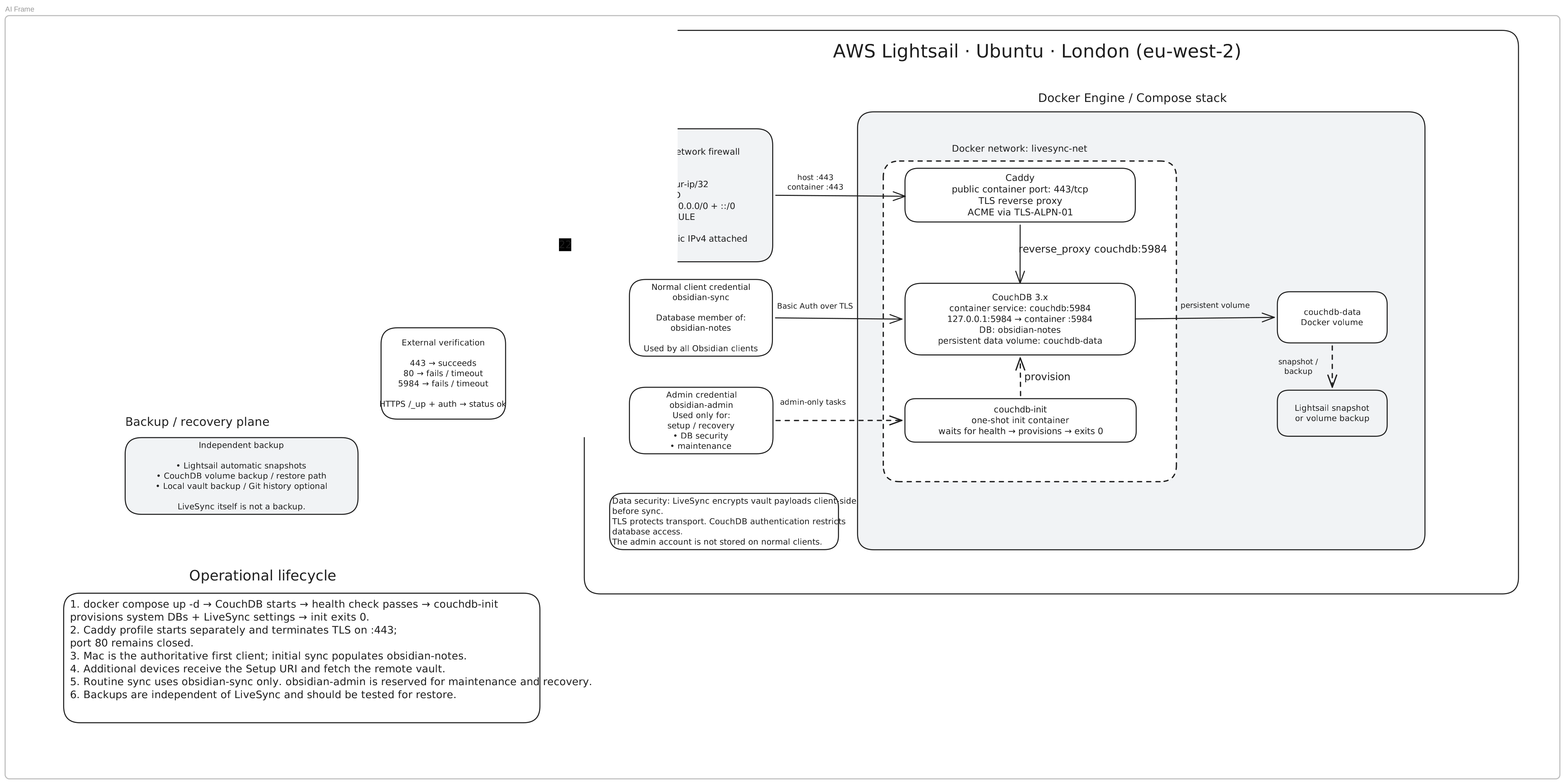
Self-hosted LiveSync architecture, security boundaries and operational lifecycle.
Open the full-size editable architecture diagram.
A device resolves the server hostname, connects to Caddy on port 443, then authenticates to CouchDB through the private container network. CouchDB writes synchronized state to a named volume. A separate backup path protects against server loss and unwanted changes that synchronization would faithfully distribute.
| Credential | Where it belongs | What it permits |
|---|---|---|
| Server SSH key | Administrative workstation | Operate the host |
obsidian-admin password | Server .env and password manager | Initialize and administer CouchDB |
obsidian-sync password | Obsidian clients and password manager | Read/write the vault database's ordinary documents |
| LiveSync E2EE passphrase | Authorized clients and separate recovery record | Decrypt the client-encrypted content |
Database authentication and LiveSync end-to-end encryption are separate settings. Enable E2EE explicitly in the plugin; entering a database password alone does not enable it. A leaked sync password still permits damage to synchronized data, even when encrypted content remains unreadable. That is one reason backups need independent credentials and history.
1. Prepare Lightsail, DNS and the firewall
My deployment uses a small Ubuntu Lightsail instance in London with an attached static IPv4 address and a DuckDNS hostname. Your own domain works too. Create an A record pointing at the static address. Publish an AAAA record only if the instance's IPv6 path is configured and reachable.
Use these public firewall rules:
| Port | Source | Purpose |
|---|---|---|
| TCP 22 | Your administrative IP only | SSH |
| TCP 443 | Public internet | HTTPS sync and certificate validation |
| TCP 80 | No inbound rule | Not needed by this configuration |
| TCP 5984 | No inbound rule | Never expose CouchDB directly |
Lightsail maintains separate IPv4 and IPv6 firewalls. Review both, alongside any host firewall. An IPv4 restriction does not automatically restrict IPv6.
Install Docker Engine and the Compose plugin using the official Ubuntu installation instructions. The host also needs Python 3, curl and unzip. Confirm docker compose version and python3 --version work. Run the commands from a trusted administrative account with Docker access; that access grants substantial control over the host.
2. Download the complete reference setup
The archive includes compose.yaml, Caddyfile, couchdb.ini, env.example, manage.py, backup.sh, restore.sh and documentation. It does not contain credentials or a vault. Inspect the files before running them.
mkdir -p ~/obsidian-livesync
cd ~/obsidian-livesync
curl -fL https://vikramadityatatke.com/blog/obsidian-livesync-reference.zip -o reference.zip
unzip reference.zip
python3 manage.py configure --domain notes.example.com --email you@example.com
docker compose config --quiet
Replace the hostname and email before running configure. It creates a new .env with two independent random passwords and mode 0600; it refuses to overwrite an existing file. Keep the directory private and save the credentials in your password manager. Never commit .env or share resolved Compose output, which can include secrets.
The image digests reproduce the versions listed above. They do not update automatically. Review release notes and replace the pins deliberately after backing up and testing an upgrade.
Why these CouchDB settings matter
The essential settings in couchdb.ini are:
[couchdb]
single_node = true
max_document_size = 50000000

[cluster]
n = 1

[chttpd]
require_valid_user = true
enable_cors = true
max_http_request_size = 4294967296

[cors]
credentials = true
origins = app://obsidian.md,capacitor://localhost,http://localhost
Single-node mode creates the system databases. The explicit replication factor matches a one-node deployment. The document and request limits follow the needs of the LiveSync reference configuration; they are different limits, and CouchDB's document-size limit excludes attachments. See the CouchDB configuration reference and the upstream LiveSync Docker setup.
CORS allows the plugin's application origins. It is a browser access policy, not a replacement for passwords or database permissions. The CouchDB HTTP configuration reference explains credentialed CORS and the origin list. Do not replace that list with a wildcard to work around an unexplained error.
3. Initialize CouchDB and verify the restricted account
docker compose up -d couchdb
python3 manage.py init
python3 manage.py check
manage.py uses Python's standard library, reads .env directly and sends administrative requests only to loopback. It does not depend on shell-exported variables. Initialization waits for CouchDB, creates obsidian-notes, creates a role-free obsidian-sync user, and makes that user a member of the vault database. It refuses unexpected existing permissions rather than silently replacing them.
Repeated initialization preserves an existing user's password. It is not a password-rotation command. The check command reads server state and sends CORS preflights; it does not insert or change notes.
Expected output includes:
CouchDB version: 3.5.3
PASS: anonymous access denied; restricted user authenticated; admin API denied.
PASS: all three Obsidian app origins allowed; unrelated origin not allowed.
Review the CouchDB database security model: a database member can read and write ordinary documents, while database administration remains separate. Never put obsidian-admin into a normal Obsidian client.
Check the host listener too:
ss -ltn 'sport = :5984'
The published host endpoint should be 127.0.0.1:5984. Seeing 0.0.0.0:5984 or [::]:5984 is a reason to stop and correct the mapping before opening the service to clients.
4. Enable HTTPS with Caddy
The included Caddyfile disables HTTP redirects and the HTTP ACME challenge. Certificate validation uses TLS-ALPN-01 over TCP 443. The hostname must resolve to this server, and validation traffic must reach Caddy without an intervening TLS terminator. See Caddy's automatic HTTPS documentation and TLS issuer options.
docker compose --profile https run --rm --no-deps caddy \
  caddy validate --config /etc/caddy/Caddyfile --adapter caddyfile
docker compose --profile https up -d
docker compose logs caddy --tail=100
Keep the caddy-data volume: it holds certificate state. From another machine, use your real hostname to test the protected database:
curl -i https://notes.example.com/obsidian-notes
curl --user obsidian-sync https://notes.example.com/obsidian-notes
The first request should return 401. The second prompts for the sync password and should return database JSON. Do not add the password after the username in the command line. Also check from outside the server that ports 80 and 5984 are unreachable.
Use the vault endpoint for the authentication test. CouchDB's /_up health endpoint may return 200 anonymously; that alone does not mean your notes are public. Likewise, a healthy container does not prove that DNS, TLS or vault authorization works.
To inspect the HTTPS CORS response:
curl -i -X OPTIONS https://notes.example.com/obsidian-notes \
  -H 'Origin: app://obsidian.md' \
  -H 'Access-Control-Request-Method: POST' \
  -H 'Access-Control-Request-Headers: authorization,content-type'
Look for Access-Control-Allow-Origin: app://obsidian.md and Access-Control-Allow-Credentials: true. Repeat with capacitor://localhost and http://localhost. Run these external checks before troubleshooting the Obsidian plugin.
5. Connect Obsidian without risking the primary vault
Start with a backed-up primary vault and an empty remote database. Install the community plugin Self-hosted LiveSync and use its setup flow to enter:
| Setting | Reference value |
|---|---|
| Remote endpoint | https://notes.example.com |
| Database | obsidian-notes |
| Username | obsidian-sync |
| Password | The sync password from your private .env |
| End-to-end encryption | Enabled, with its own saved passphrase |
Plugin labels and setup choices can change between releases. Read the confirmation carefully when choosing whether local or remote data is authoritative. Do not select a rebuild, reset or overwrite operation merely to dismiss a connection error.
Let the primary device finish its initial upload before configuring an empty test vault on a second device. Use a protected Setup URI if the plugin offers it, and treat that URI and its passphrase as secrets. Avoid running a second vault synchronization service against the same vault while validating LiveSync.
Device acceptance checklist
These are checks to perform on your actual desktop and mobile clients; the local server test does not substitute for them:
- Create a uniquely named Markdown note on the primary device; confirm its content on the second device.
- Edit it on the second device and confirm the change on the first.
- Add an attachment, download it on the other device and compare the file or its checksum.
- Make an offline edit, reconnect and confirm it reaches the other device.
- Deliberately edit the same test note on both offline clients. Inspect the plugin's conflict handling before trusting it with important changes.
- Delete a disposable note and confirm the deletion synchronizes. Recover a previous copy from your independent backup.
Add the next device only after these checks pass. A database document count is not a vault file count: LiveSync's internal representation can include multiple documents for content and metadata.
6. Back up, then prove that you can restore
Keep three recoverable layers: CouchDB's data, the deployment configuration and credentials, and an independent versioned copy of the local Markdown vault. CouchDB replication can copy a database, but ongoing replication can propagate unwanted changes too. It does not replace retained backup history.
The included cold-backup script stops only this Compose project's CouchDB, archives its data volume, writes a SHA-256 checksum and restarts the existing container. Plan a short sync interruption; Caddy can return 502 while CouchDB is stopped.
sh backup.sh
Keep the archive and checksum private. Copy them to encrypted storage away from the instance, with retention that survives a deletion or compromised server account. Save .env, couchdb.ini, the Compose file and Caddyfile separately in the same protected recovery plan. A checksum detects changes; it does not encrypt or authenticate an archive against an attacker who can replace both files.
Run a restore drill using the exact backup filename printed by the script:
sh restore.sh backups/couchdb-YOUR-TIMESTAMP.tar.gz
The restore script checks the checksum and extracts into a fresh Compose project with a new data volume. It starts CouchDB on loopback port 15985, checks authentication and CORS, and prints that project's name. It does not switch any Obsidian client or publish another HTTPS service. Use RESTORE_PORT=15987 sh restore.sh ... if the default port is occupied.
Inspect recovered notes and attachments before making a recovery decision. The script prints a cleanup command scoped to the temporary project; use that exact project name when the drill is finished. Avoid volume deletion commands against the original project.
Lightsail snapshots are another recovery layer. Automatic snapshots retain the latest seven daily snapshots; keep selected snapshots manually when longer retention is needed. Coordinate database consistency when taking an instance snapshot, and test a restored instance separately before sending clients to it.
Troubleshooting by symptom
| Symptom | Check first |
|---|---|
401 at the vault endpoint | Endpoint, username and the sync password; an anonymous 401 is expected |
| Authenticated account denied access | Membership in this database; use the admin account locally to inspect _security |
| Browser/plugin reports CORS | Run the preflight above; check the exact app origin, credentials header and any proxy-added headers |
Caddy returns 502 | docker compose ps, CouchDB health and logs, and the couchdb:5984 network target |
| Certificate issuance fails | A/AAAA records, both Lightsail firewall families, port 443 reachability and direct TLS-ALPN access to Caddy |
Large content fails with 413 | Request size, document size and any additional proxy limit; attachment size is not the same as CouchDB JSON document size |
| Empty or incomplete second vault | Same database and E2EE settings; completed first upload; correct initial fetch direction; plugin error log |
| Conflict or unexpected deletion | Stop making further changes, preserve local copies and inspect history before a rebuild or resync |
| Disk fills | Host disk usage, CouchDB growth and backup retention; never use a broad volume prune as a repair step |
Useful server checks are:
docker compose --profile https ps -a
docker compose logs couchdb --tail=100
docker compose logs caddy --tail=100
python3 manage.py check
df -h
docker system df
Review logs before sharing them: hostnames, document identifiers and other operational details may be private. Before updating image pins or the plugin, take backups, record the old versions, review release notes and repeat both the device checks and the restore drill.
The useful outcome is a service whose behavior you can verify: a protected database behind valid HTTPS, restricted client credentials, working synchronization on your own devices and an independent path back to a known-good vault.